Table
Show grouped data as rows with one sortable column per metric
A table chart shows one row per group, for example one row per game version or country, and one column for each metric. Use it to compare several numbers side by side, like unique servers and total events for every version.
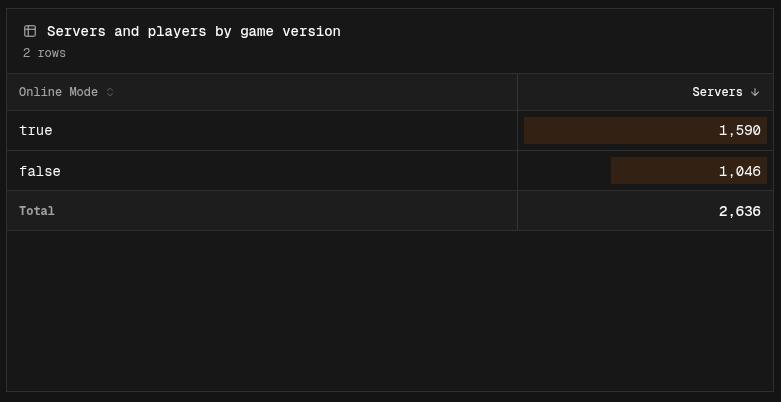
Creating a table
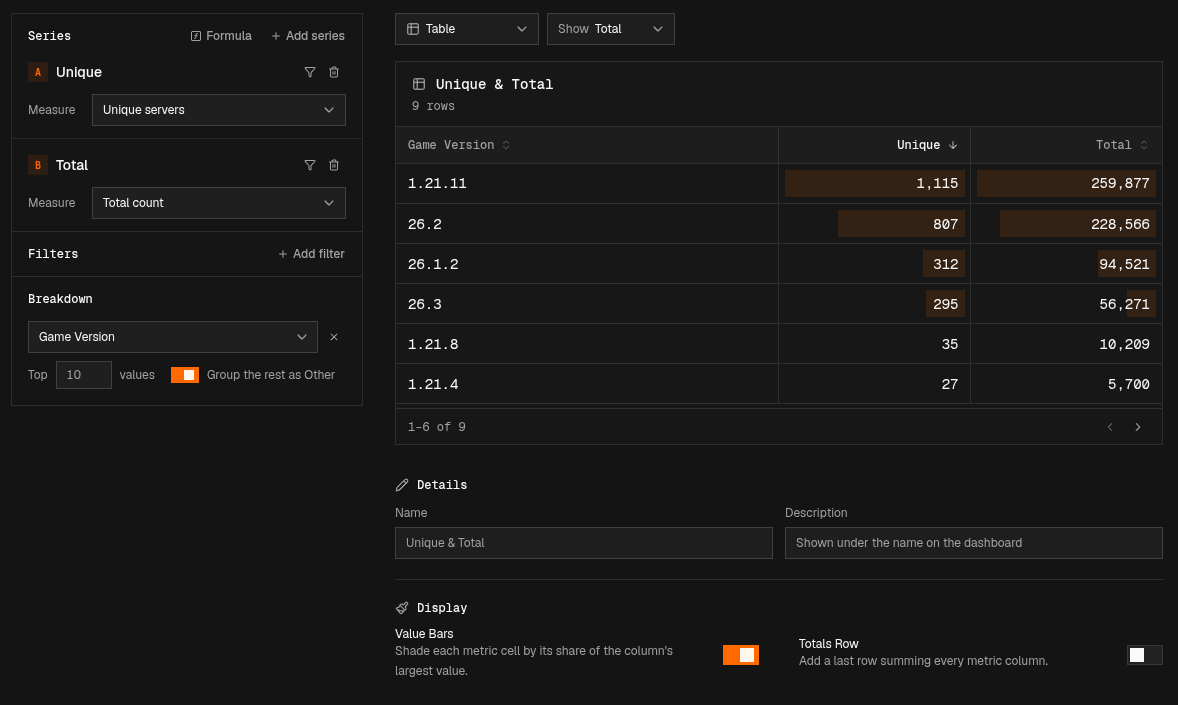
In the chart editor, set the chart type to Table. Tables work in both editor modes.
In Easy mode
- Add a series for each column you want. Each series becomes one column.
- Under Breakdown, pick the field that each row stands for, such as Game Version.
- Set Top n values to choose how many rows to show, and turn on Group the rest as Other to sum up everything else into one row.
- Give each series a name. The names become the column headers.
Without a breakdown, the table shows a single row with one total per column.
In Canvas mode
Each Output node becomes one column. Group every pipeline by the same field with a Group By node, so the values for each group line up in the same row.
- Build one pipeline per column, each ending in a named Output node
- Add a Group By node on the same field to every pipeline
- Aggregate each pipeline, for example
countin one anddistinctin another - Place the Output nodes left to right in the order you want the columns
A pipeline without a Group By node has nothing to split into rows, so the table shows a single row for it.
Columns and rows
| Part | Where it comes from |
|---|---|
| First column | The field you group by. Its header is the field name, for example “Game Version” |
| Metric columns | One per series or Output node. Unnamed columns are called “Value”, “Value 2”, etc. |
| Rows | One per group. Groups with no value are shown as “(empty)” |
Row labels get twice the width of a metric column, and the table always fits the width of its card, so you never have to scroll sideways.
When you group by country, each row gets a flag icon automatically. Other fields show icons if the Output node has an icon set.
Display options
Under Display in the chart editor:
| Option | Default | Description |
|---|---|---|
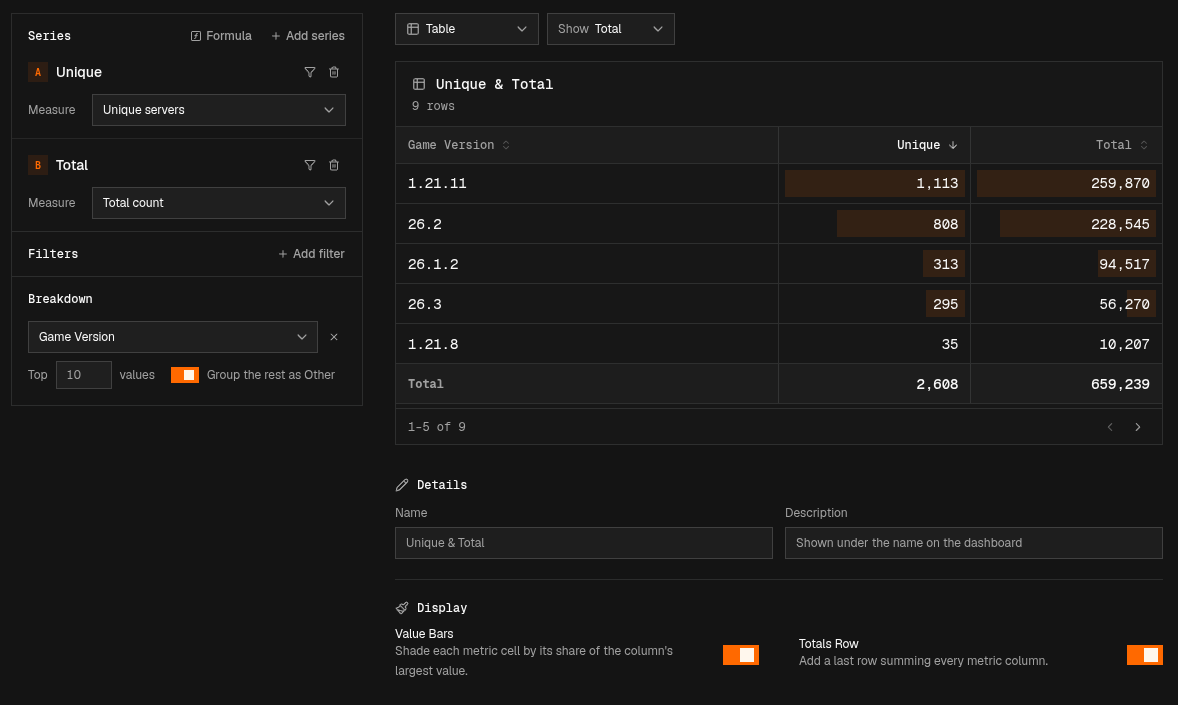
| Value Bars | On | Shades each metric cell by its share of the column’s largest value |
| Totals Row | Off | Adds a last row that sums every metric column |
Using a table on the dashboard
Sorting
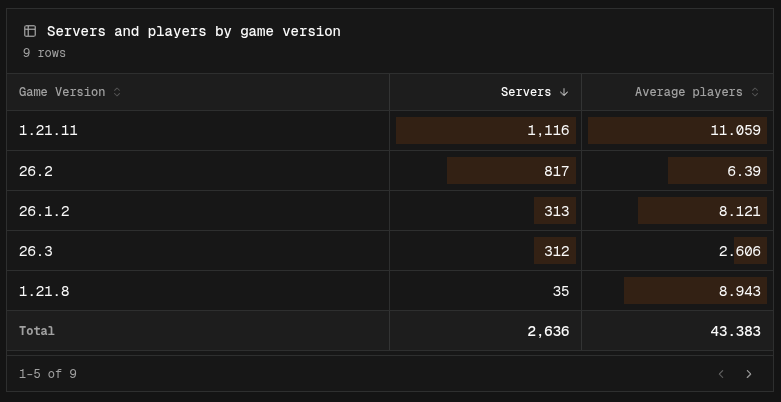
Click a column header to sort by it, and click it again to flip the order. Tables start sorted by the first metric column, highest value first. Metric columns sort highest first on the first click, and the row label column sorts A to Z.
Pages
If there are more rows than fit in the card, the table splits them into pages. Use the arrows below the table to move between pages. Make the card taller on the dashboard to show more rows at once, or open the table in fullscreen.
Filtering the dashboard
If you can manage the project, click a row label to filter the whole dashboard to that value. For example, clicking 1.21.11 in a table grouped by Game Version filters every chart to that version. While no description is set, the table shows a hint like “Click a game version to filter the dashboard.” under its name.