Overview
Every chart type in FastStats and when to use it
Pick the chart type in the chart editor, next to the preview. You can change it at any time, and the same data is drawn in the new style.
Choosing a chart type
| Chart type | Best for |
|---|---|
| Widget | One or more headline numbers with a trend |
| Line | Trends over time |
| Area | Trends over time, with the volume filled in |
| Bar | Comparing values over time or by group |
| Pie | How a total splits into a few groups |
| List | Ranked values, like top pages or versions |
| Table | Several metrics side by side for each group |
| Map | Values per country |
| Treemap | Share of a total, as rectangles sized by value |
| Heatmap | Activity by hour and day, or across two groupings |
| Radar | Comparing series across several categories at once |
| Scatter | Values plotted against a numeric grouping like Core Count |
Over time or as a total
Some chart types plot values over time, others show one value per group.
- Line and area charts always use a time interval. In Easy mode, switching to one of them sets Show to Auto.
- Pie, list, map, and treemap charts always show a total per group. In Easy mode, switching to one of them sets Show to Total.
- Bar, widget, and table charts keep whatever you picked.
In Canvas mode, a Time Group node puts a chart on a time axis, and a Group By node splits it into groups.
Shared options
Values
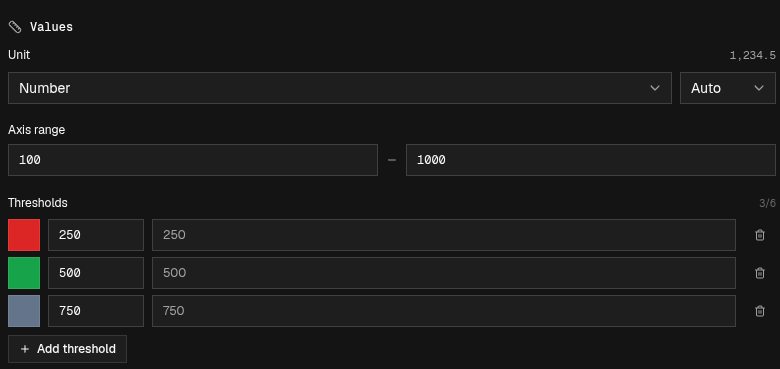
Line, area, and bar charts have a Values section in the chart editor that controls how numbers are shown on the value axis and in tooltips.
| Setting | Description |
|---|---|
| Unit | Number, Percent (0–100), Percent (0–1), Duration (ms), Duration (s), Bytes, or a custom unit like req/s |
| Decimal places | Auto, or a fixed number from 0 to 4 |
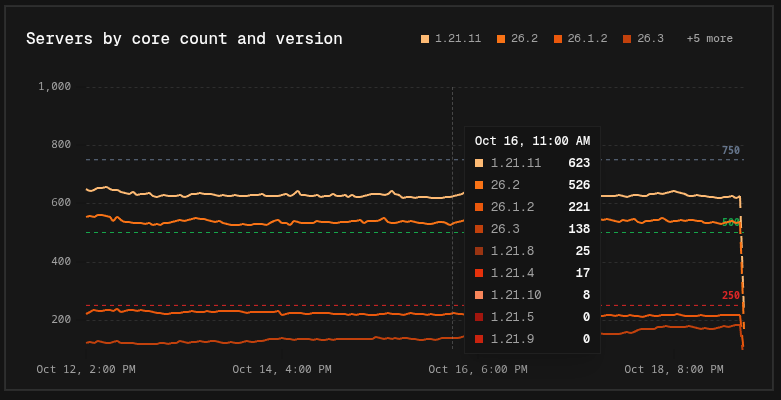
| Axis range | A fixed minimum and maximum for the value axis. Leave empty to scale automatically |
| Thresholds | Up to 6 labeled lines at a value, like a goal, budget, or limit. Pick a color for each one |
Event markers
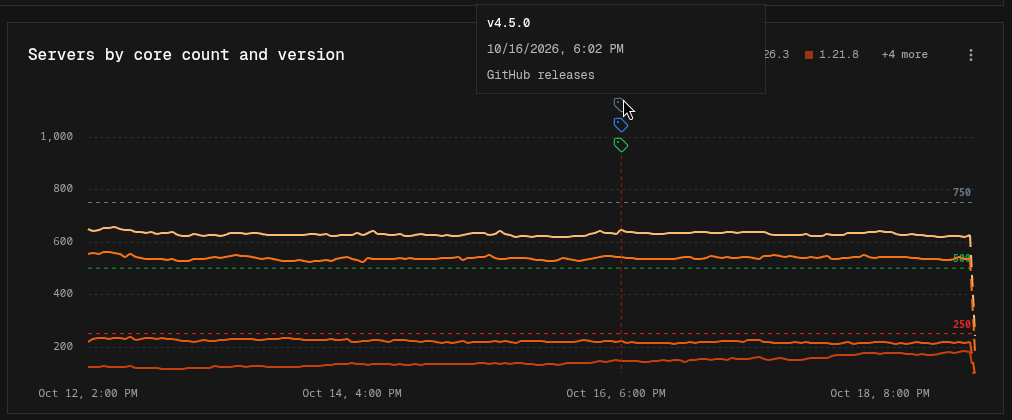
Line and area charts can show Event Markers: labeled points in time like launches, releases, or milestones. Turn on the marker collections you want under Event Markers in the chart editor.
Legend
Charts with more than one series show a legend. Click an entry to hide or show that series. Hold Shift or Alt while clicking to show only that series, and do it again to bring the others back. Hidden series are remembered in your browser.
Logarithmic scale
Line, area, bar, radar, and scatter charts have a Logarithmic Scale toggle. It spaces the value axis by orders of magnitude, which helps when one series is much larger than another.